

 Calendar
Icon
Calendar
Icon
All date fields are followed by a Calendar icon  that can be used to both select and automatically enter a
date value. Click on the Calendar icon to open the pop-up calendar, which looks
like the following example:
that can be used to both select and automatically enter a
date value. Click on the Calendar icon to open the pop-up calendar, which looks
like the following example:
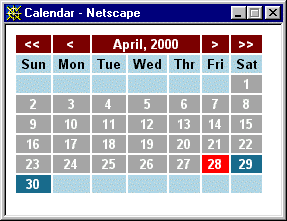
To navigate the calendar, click the forward/backward buttons located on the
top bar of the calendar.
|
> |
Moves the calendar forward 1 month |
|
>> |
Moves the calendar forward 1 year |
|
< |
Moves the calendar backward 1 month |
|
<< |
Moves the calendar backward 1 year |
Select a date from the calendar by clicking on the appropriate day. The selected value is automatically entered into the date field and the pop-up calendar is closed.