


When a borrower is displayed in the Borrower Information window, it is possible to add, view, and/or update address information for the borrower by clicking on the Add/Update Addresses link.
When this link is clicked, a new pop-up window is displayed that contains the following
A listing of the current and past addresses for the borrower, as shown in the example below. The user can select any of these addresses by clicking on the magnifying glass icon. Once an address has been selected, the address information can be updated, or the address can be deleted from the system.

The Mailing Address icon  indicates which of the listed addresses is currently used as the
borrower's mailing address.
indicates which of the listed addresses is currently used as the
borrower's mailing address.
The Add and Save icons in the function bar are enabled, thereby allowing the user to add a new address for the borrower, or to save a Mailing address designation.

If the CLM does not contain any address information for the borrower, the pop-up window contains an informational message, as shown in the example below. From this window the user can only Add a new address.

To add a new borrower address, click the Add icon located in the Function Bar. When this icon is clicked, a new window is opened (see example below) that contains the following:
A data entry form to be used for entering the new address information
A function Bar that contains Save, Delete and Reset icons. The Delete icon is disabled.
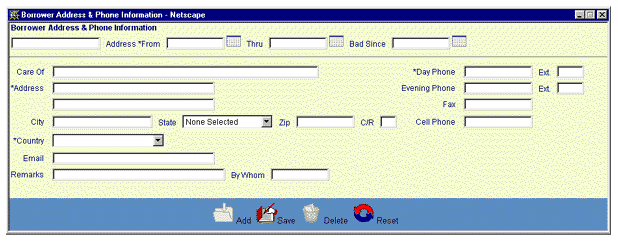
This window works the same way as the Borrower Services Borrower Address & Phone Information window does. See "Add a Borrower Address" for a detailed description of this process, including data entry and edit guidelines.
To exit this process without saving the address information, simply click on either the Borrower Address List browser window or the Borrower Information window at any time to close the pop-up Borrower Address & Phone Information data entry screen.
To view or update an existing borrower address, select the desired address by clicking on the magnifying glass icon located on the left side of the appropriate Borrower Address List line. When this icon is clicked, a new window is opened (see example below) that contains the following:
An update form that is populated with the current information for the selected address
A function Bar that contains Save, Delete and Reset icons.
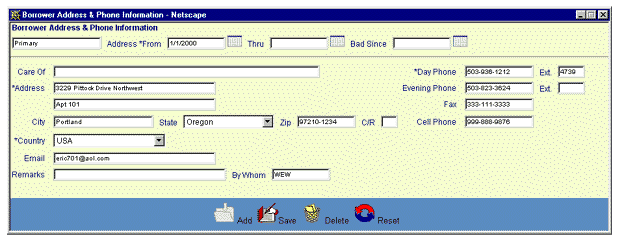
This window works the same way as the Borrower Services Borrower Address & Phone Information window does. See "Update a Borrower Address" for a detailed description of this process, including data entry and edit guidelines.
To exit this process without saving the address information, simply click on either the Borrower Address List browser window or the Borrower Information window at any time to close the pop-up Borrower Address & Phone Information data entry screen.
One of the borrower's addresses must be identified as a mailing address. This address will be used when sending bills, notices and other correspondence to the borrower.
By default, the first address that is entered into the CLM system for a given borrower is also identified as the borrower's mailing address. As newer addresses are added for the borrower, the user can select one of those to be used as the new mailing address. See the chapter entitled "Designate a Mailing Address" for additional information.